

Household: Add and edit teachers and learners
The Household tab lists the members of your household: teachers (people) and learners (animals). Members let you record who pressed a button. Each member shows a count of their presses. Every member of a shared household can add, edit and archive learners and teachers, and there is no limit on the number of learners or members.
- Tap a member’s picture to see their activity.
- Tap a member’s name to edit them.
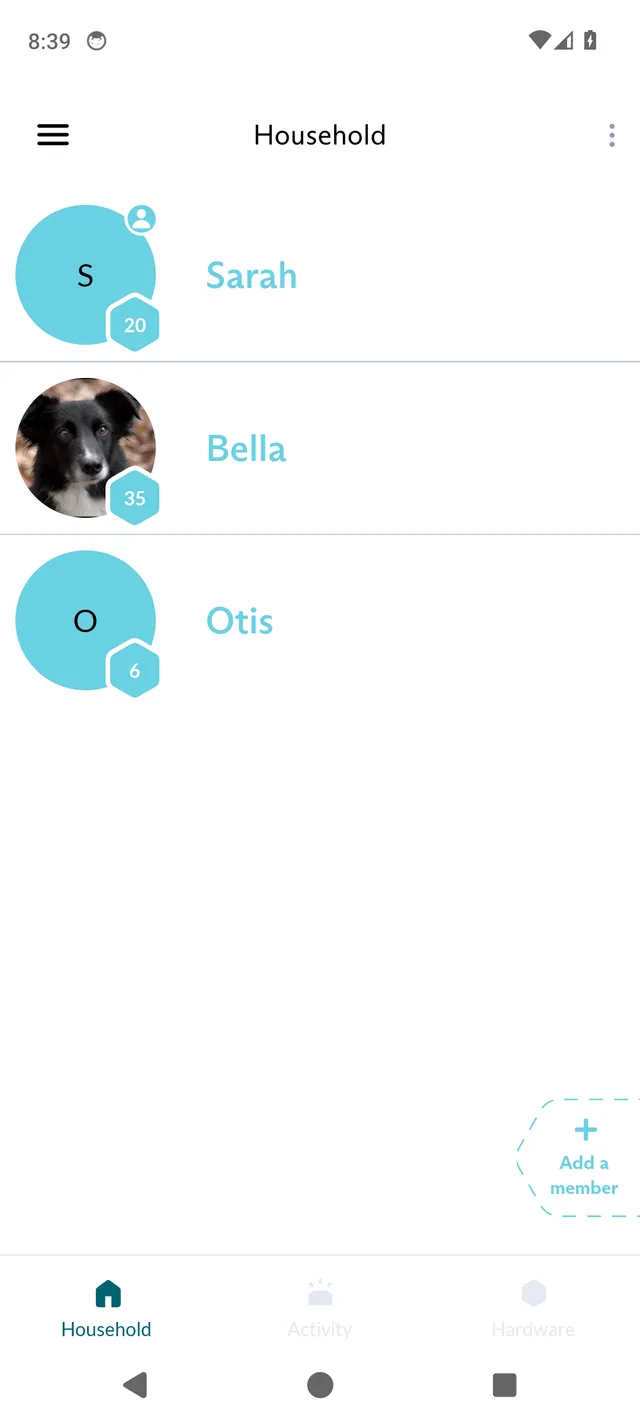
Add a member
Section titled “Add a member”- In the Household tab, tap Add a member.
- Tap Add teacher or Add learner.
- Follow the steps in the app:
- For a learner, enter the learner’s name, choose the species (Dog, Cat or Other) and the learner’s sex, and add a photo if you like.
- For a teacher, enter the teacher’s name and add a photo if you like.
Names are unique within a household, archived members included. If the name is already used, the app shows “This Household Member name has already been taken. Please choose a different one.” Creating a learner with an archived learner’s name brings the archived learner back with their history.
Edit a member
Section titled “Edit a member”- In the Household tab, tap the member’s name.
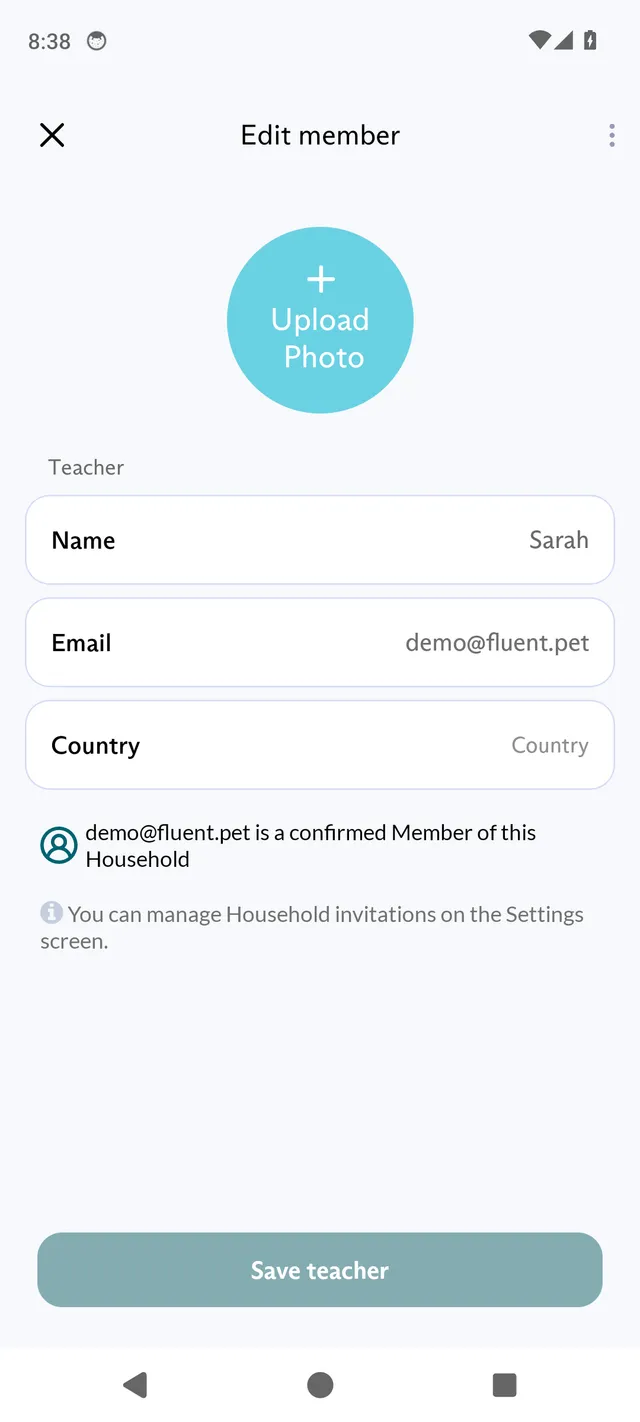
- On Edit member, change the details.
- Tap Save learner or Save teacher.
The Edit member screen has these fields:
- Upload Photo: add or change the member’s photo. To remove it, long-press the photo and choose Remove photo.
- Name: required.
- For a learner:
- Species: required.
- Teaching start date.
- Under Show advanced settings: Kind of the species, Breed, Research participant ID, Learner language (you can select multiple languages) and Learner birth date.
- For a teacher:
- Country.
- Email: filled in only for the teacher entry that was created automatically for the account that set up the household, and not editable here. For that entry, a status line says whether the person has not been invited yet, has a pending invitation, or is a confirmed member of your household.
To invite a teacher, see Household: Invite another teacher.
Archive or unarchive a member
Section titled “Archive or unarchive a member”Learners and teachers cannot be deleted. Instead, archive a member you no longer use, for example a learner who is no longer with you. Archiving keeps all of the member’s press history. It hides them from the Household list, removes them as a default presser and hides them from the public profile.
- In the Household tab, tap the member’s name.
- On Edit member, tap the three-dot menu icon at the top right.
- Tap Archive.
To see archived members, tap the three-dot menu icon at the top right of the Household tab, then tap Show archived. To bring a member back, open the archived member, tap the three-dot menu icon and tap Unarchive.