

App: Get started with the FluentPet app
The FluentPet app helps you on your learning journey with your learner. To get it, search for FluentPet in the App Store or on Google Play. When you open the app, tap Create an account to make a new account, or tap I already have an account! to sign in. You use one FluentPet account for all FluentPet websites and apps. See Account: Sign in, change your email or delete your account.
Why logging presses helps
Section titled “Why logging presses helps”- Connect Button presses are logged in the app automatically.
- Logging Speak Up! Button presses by hand lets you review which buttons are pressed when, in what sequences, and look for trends over time.
- Adding notes and context helps you support your learner with each button.
A history of presses gives you:
- Progress in the early stages. It helps you keep track of your modeling and your learner’s progress.
- Understanding later on. It becomes a key part of making sense of more complex communication from your learner.
- Context. Labeling presses, for example as accidental, a request or experimentation, shows how your learner uses (or does not use) specific buttons.
- Notes. Notes fill in the picture around a press that seems cryptic (for example “WANT”) when you review what is pressed when.
To label or annotate a press, tap the entry in the Activity feed to open it. Tap Note to add a note. If the press is assigned to a learner, tap Context to label it, for example as accidental or a request. Then tap Save.
The app is also part of a broader research effort to understand how communication through buttons works, what learners are learning and how to improve best practices. To join the research community, sign up through the FluentPet Community forum.
The three tabs
Section titled “The three tabs”At the bottom of the screen, the app has three tabs: Household, Activity and Hardware.
Household
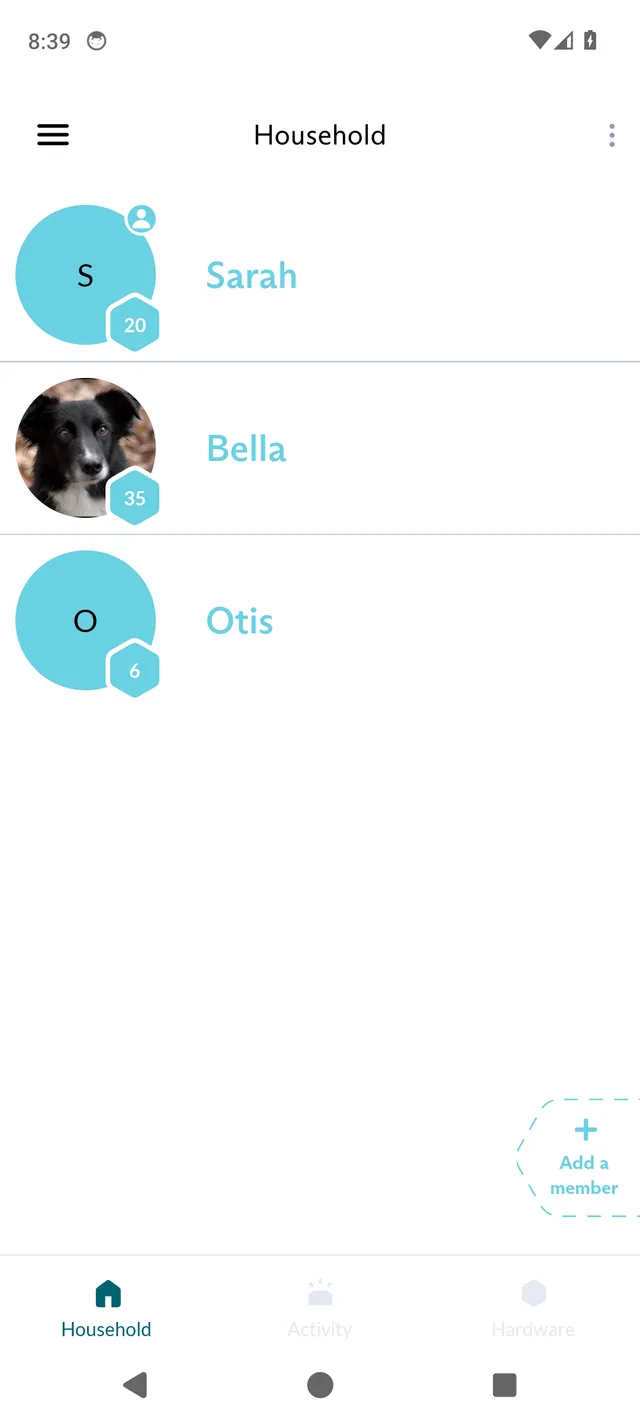
Section titled “Household”In the Household tab, you add the members of your household: teachers (people) and learners (animals). This lets you record who pressed a button. Tap Add a member to add someone, and tap a member’s picture to see their button press statistics. See Household: Add and edit teachers and learners.
Activity
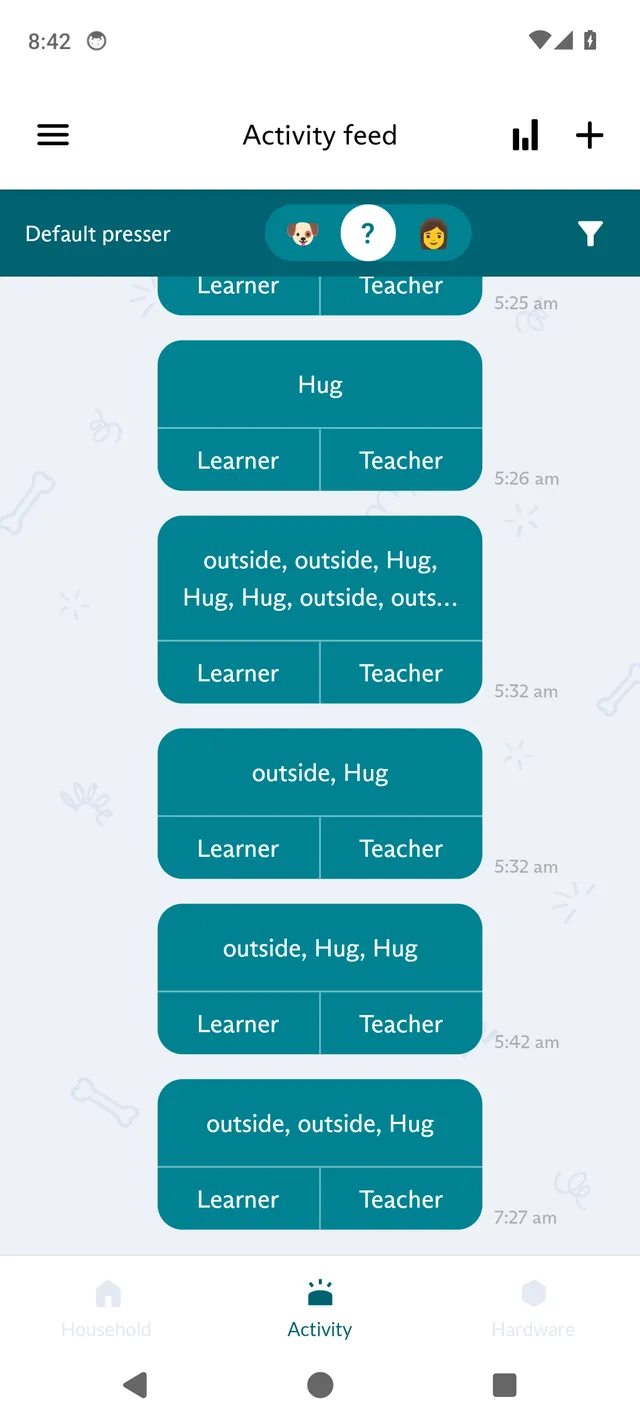
Section titled “Activity”The Activity tab shows the Activity feed, where you review and log button presses and journal entries. With FluentPet Connect, every button press appears in the feed automatically. Tap + at the top right to log an event or add a note, and long-press an entry to assign, split, share or delete it. See App: Use the Activity feed.
Hardware
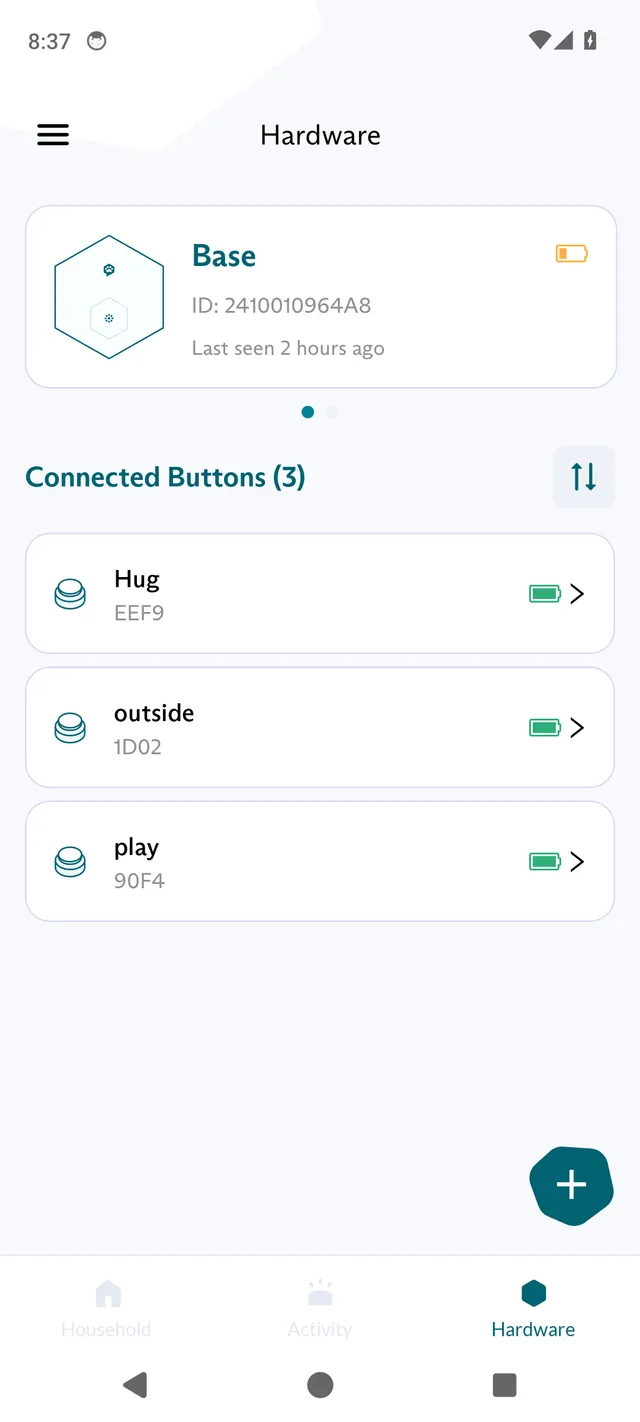
Section titled “Hardware”In the Hardware tab, you manage your Bases and buttons: add a Base or a button, change a Base’s details and change a button’s word. See App: Manage Bases and Buttons in the Hardware tab.
Analytics
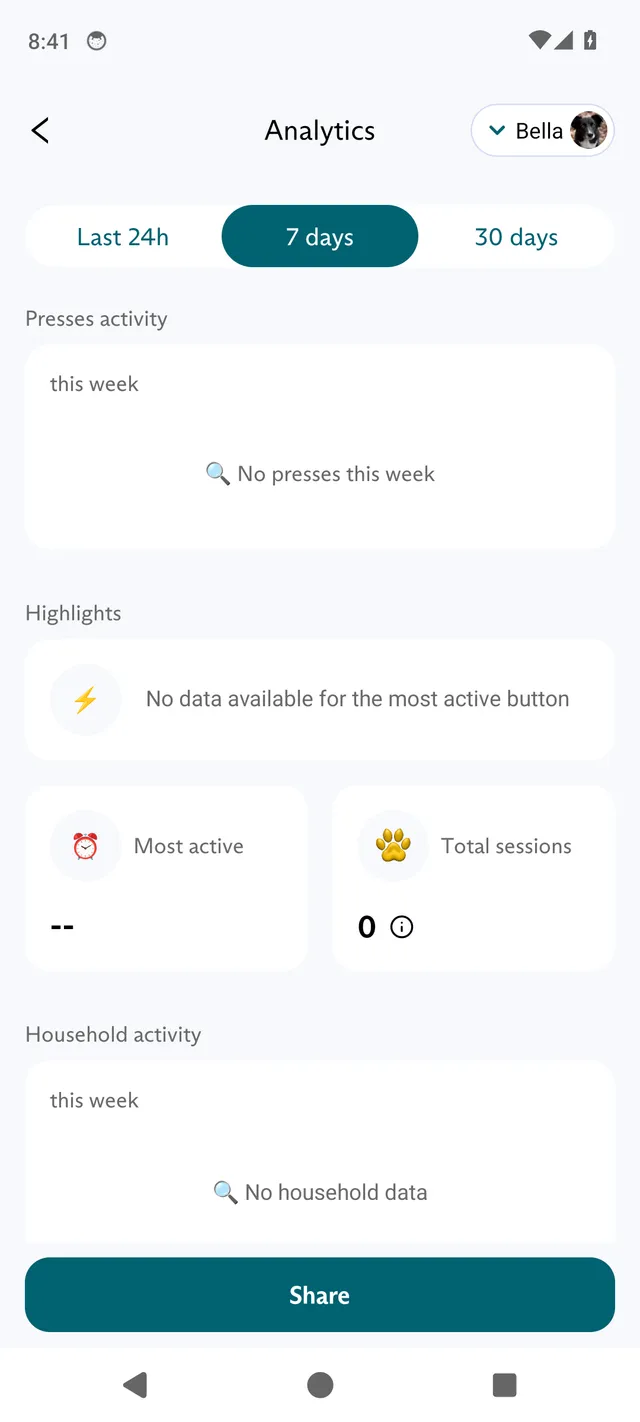
Section titled “Analytics”Tap the chart icon at the top right of the Activity feed to open Analytics. Choose a learner or teacher and a time range (Last 24h, 7 days or 30 days) to see their presses, and tap Share to share a summary. See App: Review presses in Analytics.
Settings
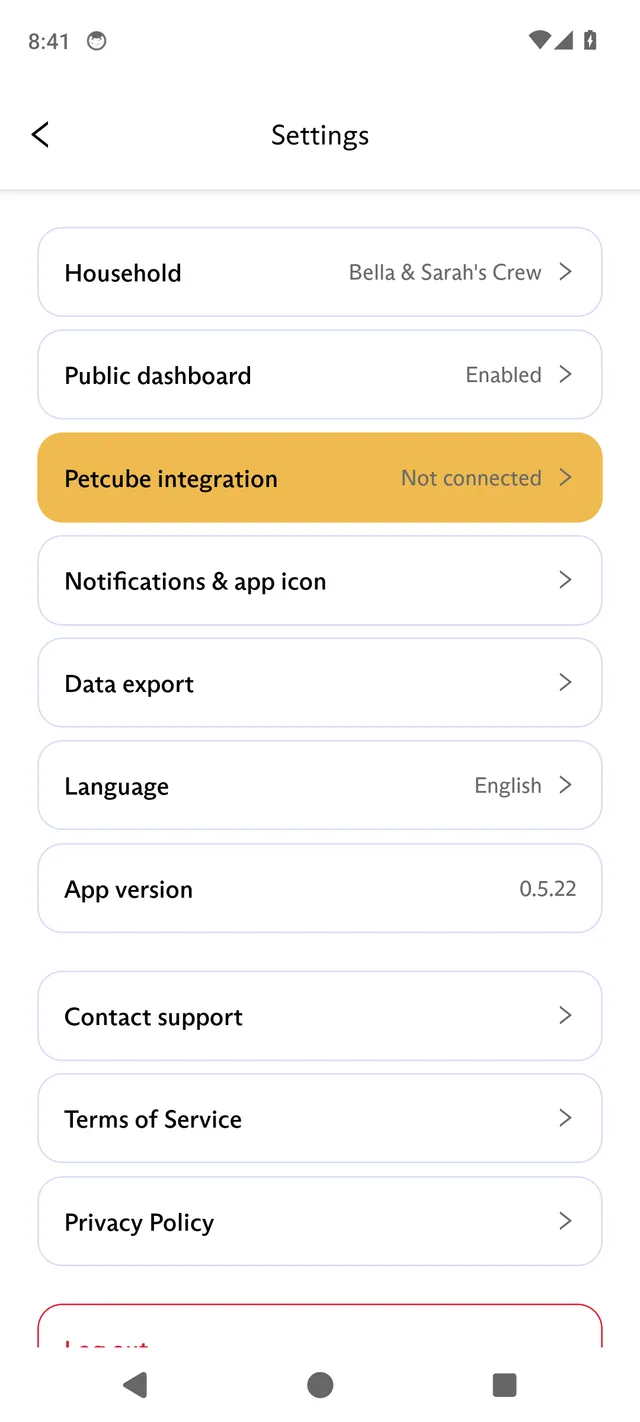
Section titled “Settings”Tap the menu icon at the top left, then tap SETTINGS. Here you manage your household, Petcube, notifications, data export and language, contact support, log out and delete your account. See App: Change settings and export your data.
To connect your household to Claude, see Data: Connect FluentPet to Claude.