

App: Use the Activity feed
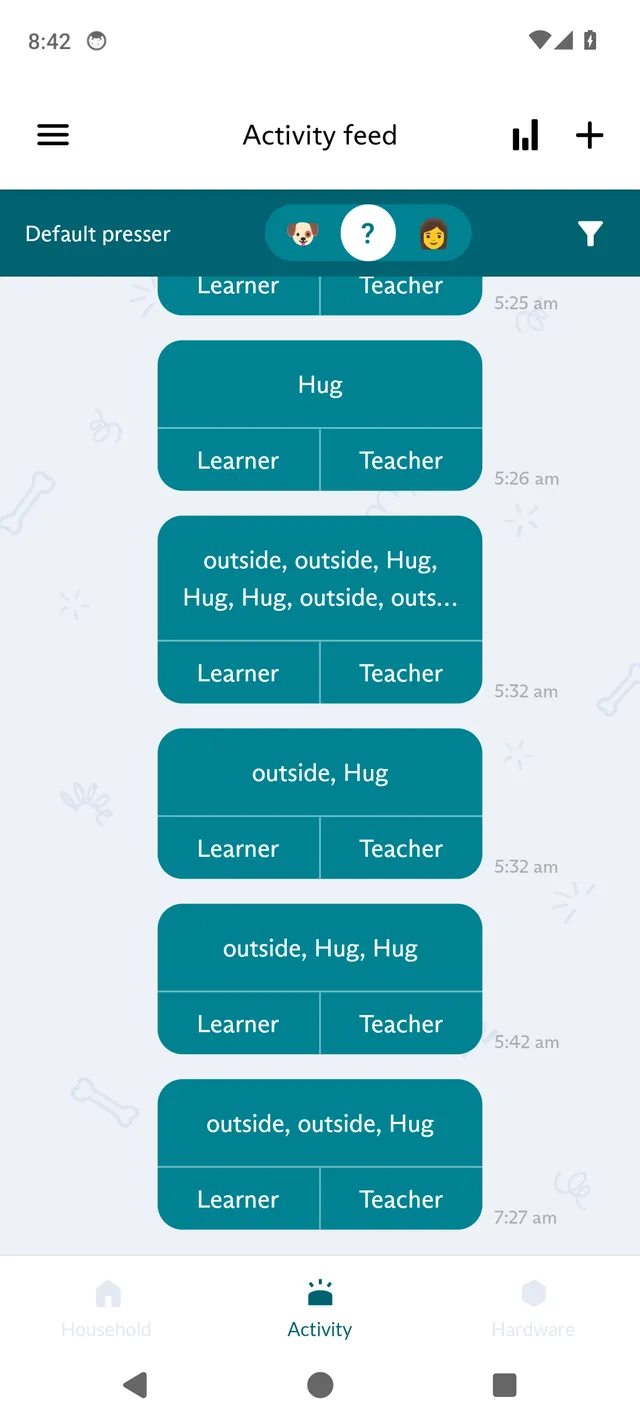
The Activity feed is where the app opens. It lists your learner’s button presses and your journal entries, with the newest at the bottom. With FluentPet Connect, every press appears in the feed automatically.
Choose the default presser
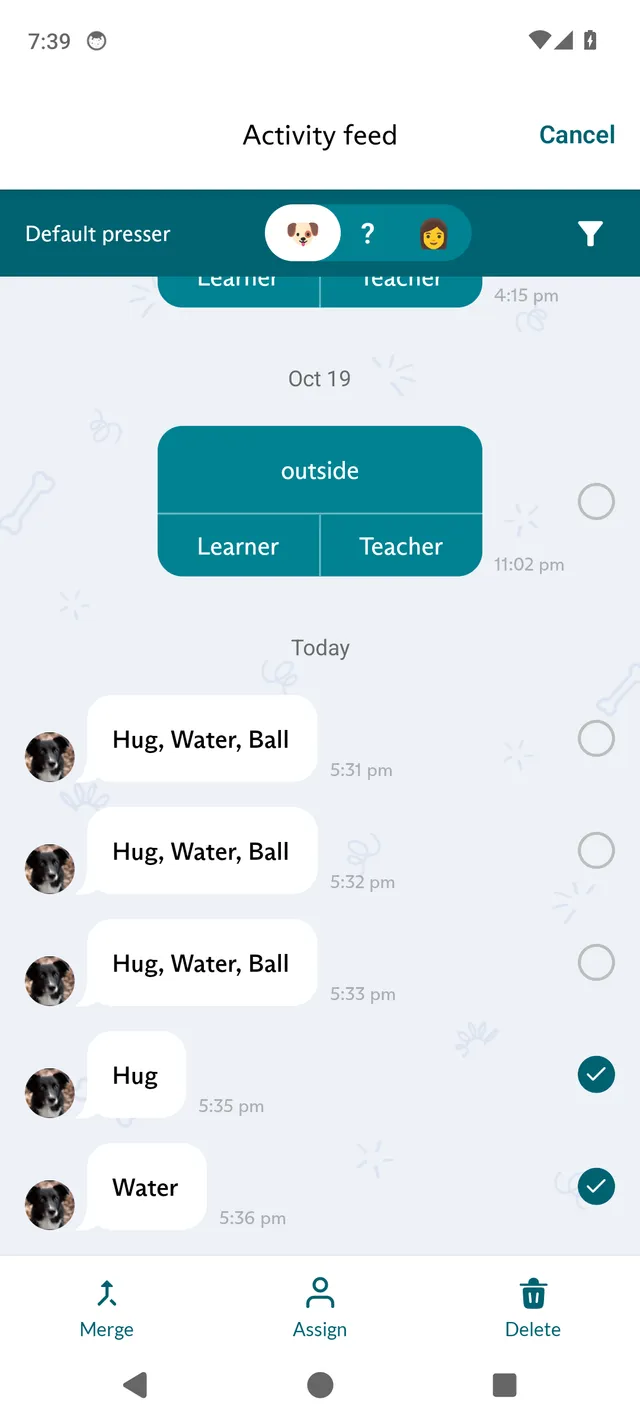
Section titled “Choose the default presser”The Default presser switch at the top decides who new presses from your Bases are assigned to:
- the learner icon assigns them to the default learner;
- ? leaves them unassigned, so you can assign them later;
- the teacher icon assigns them to the default teacher.
You choose the default learner and teacher for each Base in Base details. See App: Manage Bases and Buttons in the Hardware tab. The switch only appears when your household has a Base. If you pick the learner or teacher icon and a Base has no default learner or teacher yet, the app asks “Set a default learner?” or “Set a default teacher?”. Tap Set now to choose one in Base details, or Later to leave it. If your household has no learner yet, the app offers to add one (Add now).
Filter the feed
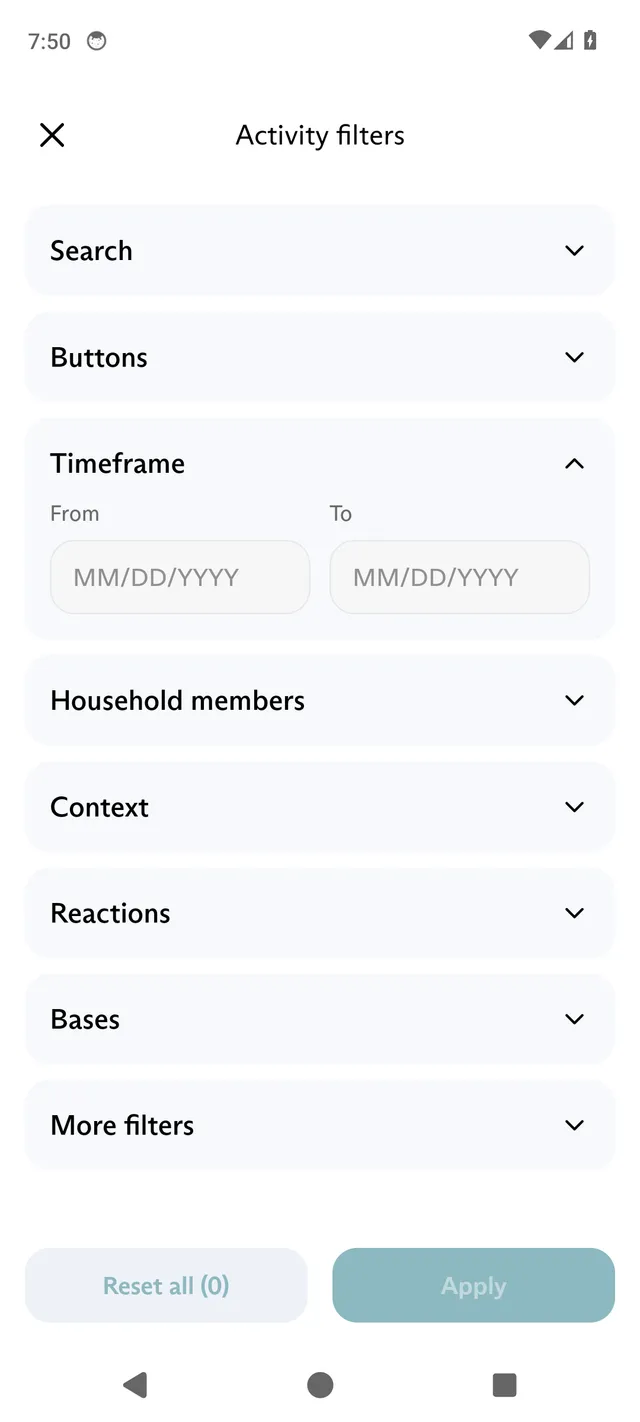
Section titled “Filter the feed”Tap the filter icon at the right end of the bar below the title to open Activity filters. You can filter by:
- Search
- Buttons
- Timeframe, with From and To dates
- Household members, including Unassigned presses
- Context
- Reactions
- Bases
- More filters: show or hide notes, show or hide entries with notes, and show single-button or multi-button presses
A section shows Deselect all once you change it. Tap Apply to filter the feed, or Reset all to clear every filter. The number after Reset all shows how many filters are on.
Log an event or add a note
Section titled “Log an event or add a note”Tap + at the top right of the feed:
- Tap Log event to log a press by hand, for example a missed press or a press on a Speak Up! Button.
- Tap Add note to add a journal entry.
Edit an event
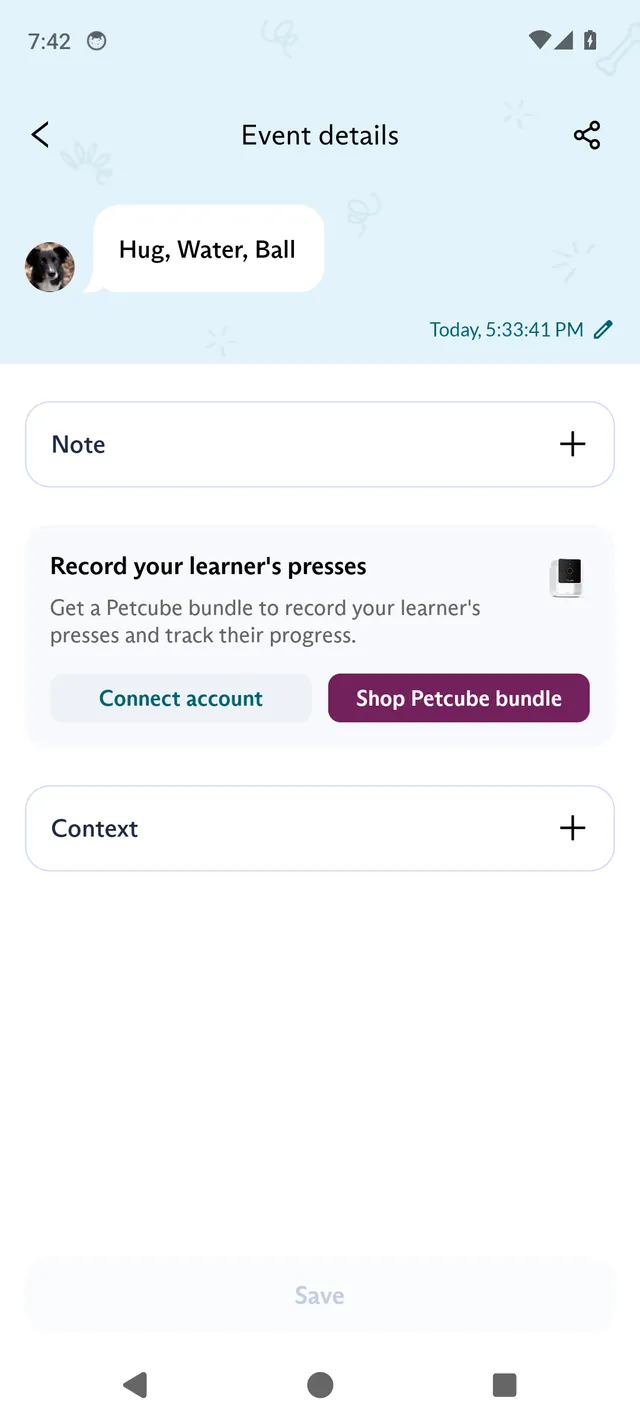
Section titled “Edit an event”Tap an entry to open Event details. There you can change the time of the event, tap Note to add a note, and, if a learner pressed, tap Context to label the press. For a teacher’s press, tap Learners involved to choose the learners the press was for. It shows when your household has active learners. Tap the picture to change who pressed, or the buttons to change them. Tap Save to keep your changes.
Use the long-press menu
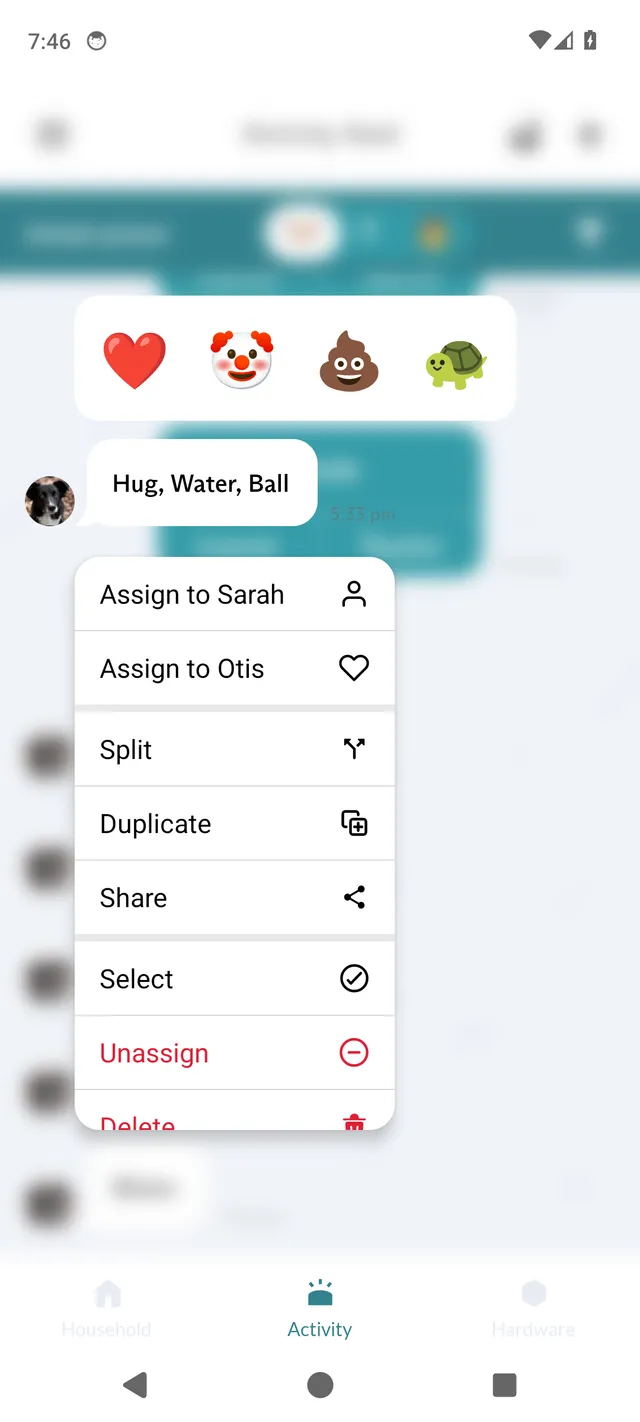
Section titled “Use the long-press menu”Long-press an entry to open its menu. For a press, the menu offers:
- Assign to teacher and Assign to learner (or Assign to followed by the name, when there is only one teacher, or only one learner, to choose from). The list leaves out whoever the press is assigned to;
- Split, which splits an entry with several buttons into separate presses. It appears for entries recorded by a Base, and for entries that were split before;
- Duplicate;
- Share (not for unassigned presses);
- Select, to select several entries (see below);
- Unassign (only for assigned presses);
- Delete.
For a journal entry, the menu offers Select and Delete.
React to a press
Section titled “React to a press”When you long-press an assigned press, a row of reactions appears above the menu: ❤️, 🤡, 💩 and 🐢. Tap one to add it to the press. Tap the same reaction again to remove it. To find presses with a reaction, use the Reactions filter.
Edit several events at once
Section titled “Edit several events at once”- Long-press an entry and tap Select.
- Tap more entries to add them to the selection.
- Use the bar at the bottom of the screen:
- Merge combines the entries into one. It needs at least two entries.
- Assign assigns them to a teacher or learner.
- Delete deletes them.
Merge and Assign are not available when the selection includes a journal entry. Tap Cancel at the top right to stop selecting.
See a member’s activity
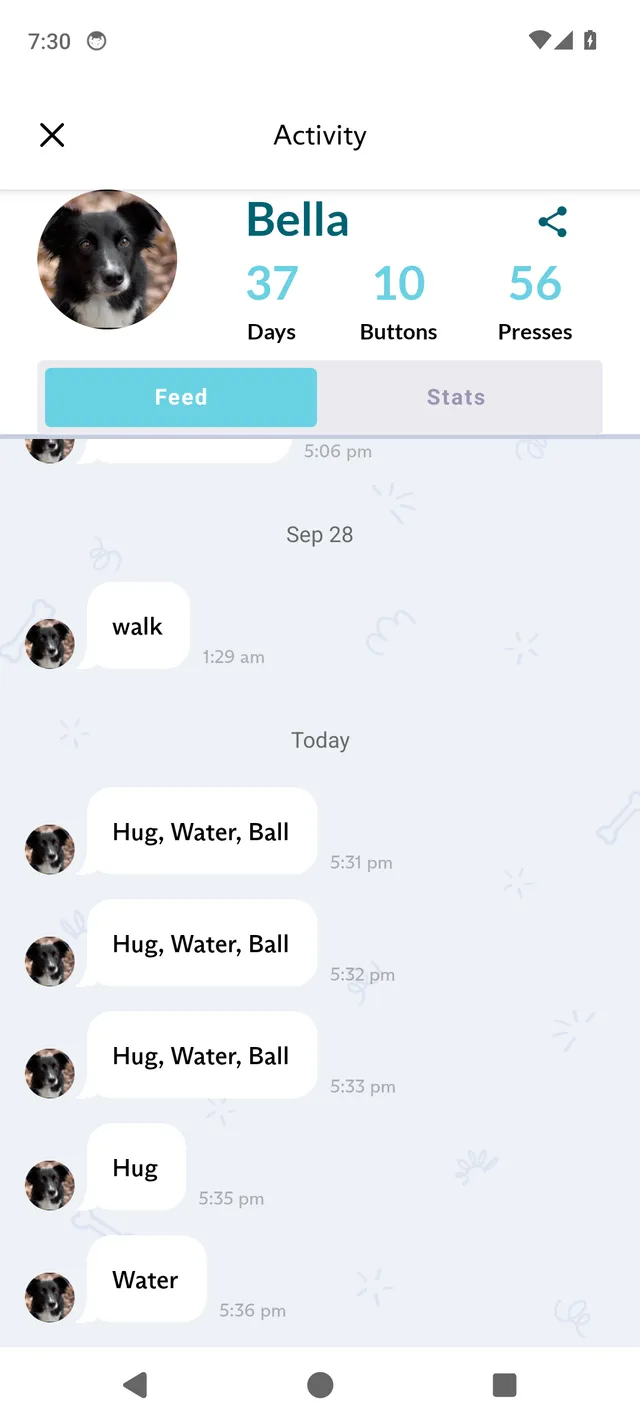
Section titled “See a member’s activity”Tap a learner’s or teacher’s picture next to an entry to open their Activity screen. It shows their entries under Feed and their statistics under Stats. To edit a member, see Household: Add and edit teachers and learners.
Refresh the feed
Section titled “Refresh the feed”At the bottom of the feed, pull up past the newest entry until Release to refresh appears, then let go.