App: Review presses in Analytics
Analytics shows the button presses recorded for one learner or teacher in the time range you choose. The activity heatmap has its own time period.
Open Analytics
Section titled “Open Analytics”- Open the Activity feed.
- Tap the chart icon at the top right.
- To choose whose presses you see, tap the name at the top right and pick a learner or teacher from the Learners or Teachers list.
- Choose a time range: Last 24h, 7 days or 30 days.
What Analytics shows
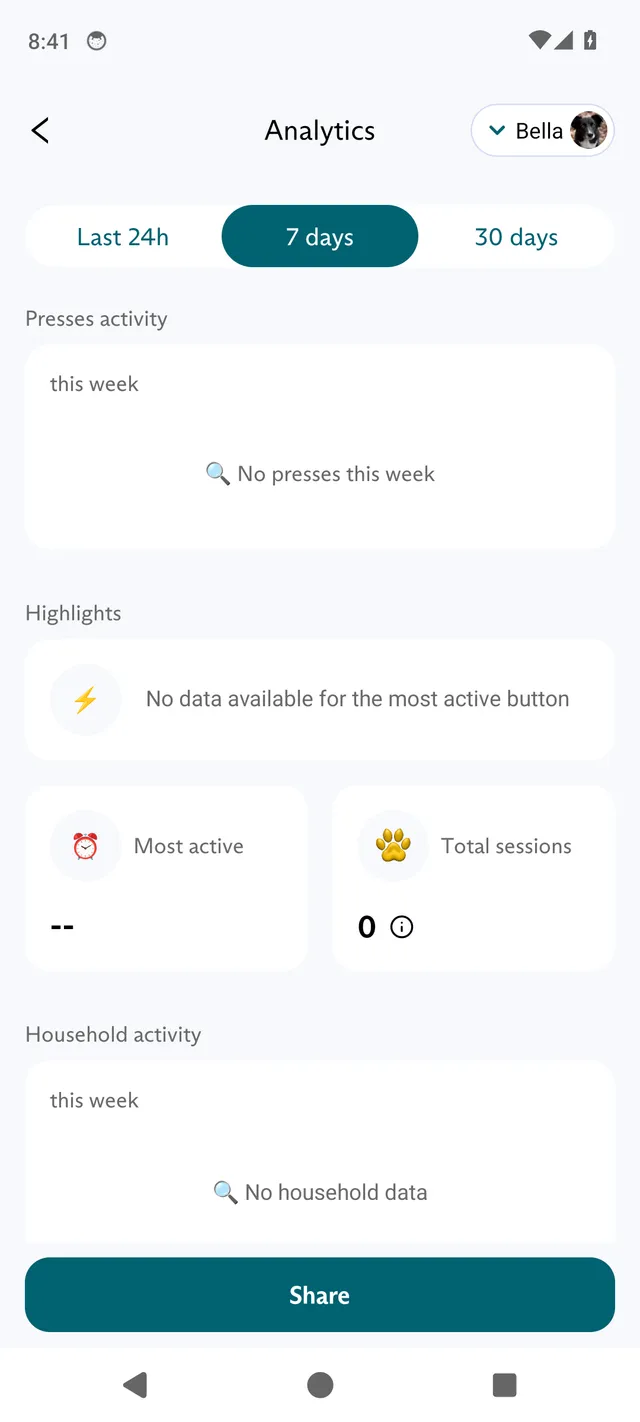
Section titled “What Analytics shows”- Presses activity: how often each button was pressed in the time range. Tap Sort to sort by Frequency or A-Z, and tap Show all to see every button.
- Highlights: the most pressed button, the time of day when the most presses happen (Most active), and Total sessions. Tap the info icon next to the number of sessions to see how a session is counted: “Session window is 15 minutes.”
- Household activity: presses over the time range for up to five household members.
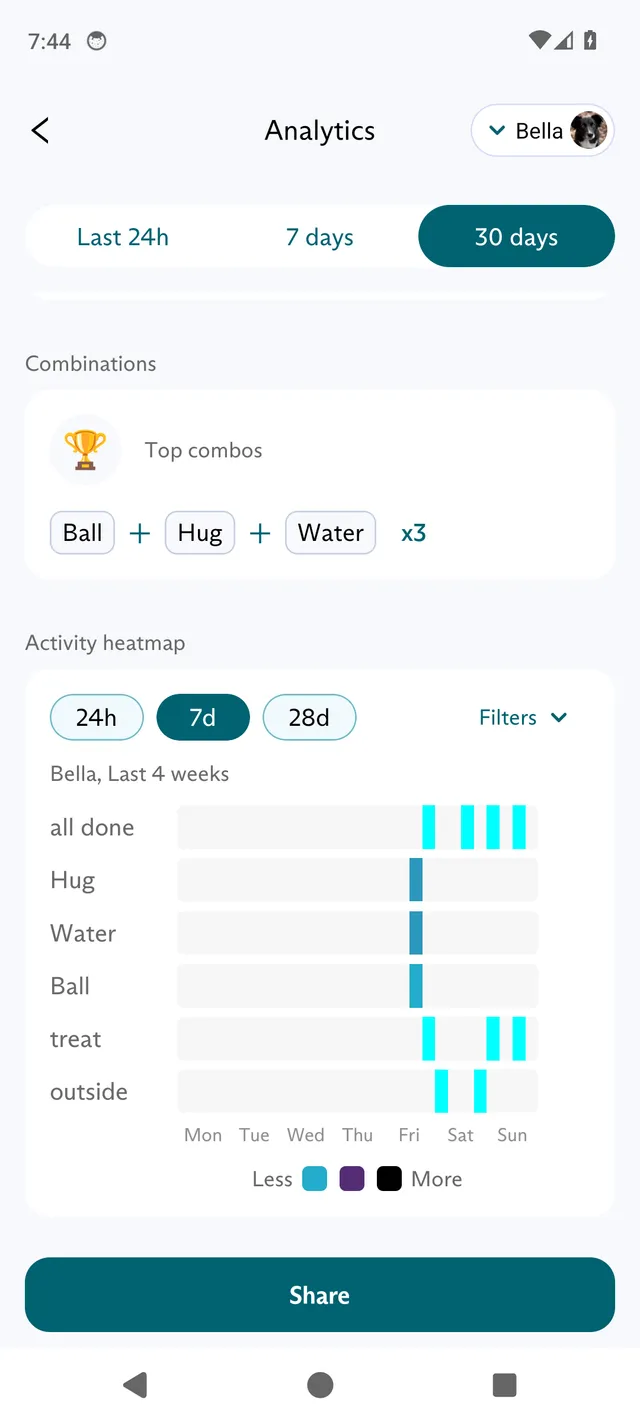
- Combinations: the buttons pressed together most often, under Top combos. Tap Sort to sort by Frequency or A-Z.
- Activity heatmap: when the six buttons pressed most in its time period are pressed, by time of day (24h), day of the week (7d) or day of the month (28d). It opens on 7d. 28d shows days 1 to 28 of the month. Tap Filters to choose the Time period it covers: Last 4 weeks, Last 3 months or Last 6 months. It starts on Last 4 weeks.
Share a summary
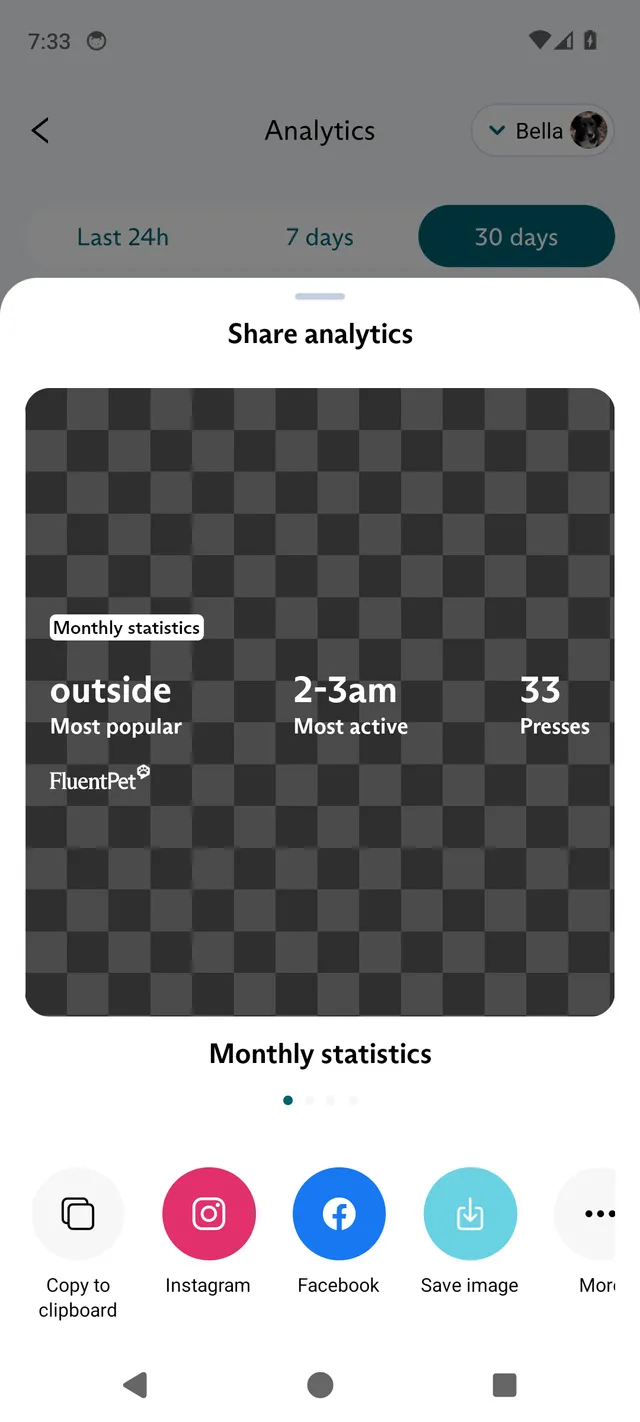
Section titled “Share a summary”- Tap Share at the bottom of the screen.
- Swipe to choose a summary card.
- Tap where to share it: Copy to clipboard, Instagram, Facebook, Save image or More for other apps on your phone.
When the public dashboard is on, the share sheet adds a last slide, Share public dashboard link, with its own options for sharing the link. See App: Change settings and export your data.