

App: Change settings and export your data
To open Settings, tap the menu icon at the top left of the app, then tap SETTINGS. The settings are listed below in the order the app shows them.
Household
Section titled “Household”Tap Household to rename your household, see its members and share it with another teacher. See Household: Invite another teacher.
Public dashboard
Section titled “Public dashboard”The public dashboard shares your learners’ activity at a public link. Tap Public dashboard to open it; the row shows Enabled or Disabled. Any household member can open this screen; only the Owner can turn the public dashboard on or off or change what it shows.
Turn on Enable public dashboard to share it. The public link then appears on the screen: tap it to open the page, or use the icons next to it to copy or share it. Under Visible learners, choose which learners appear. The link is also offered as the Share public dashboard link slide in the Analytics share sheet. See App: Review presses in Analytics.
If your household has no learners yet, the screen asks you to add a learner instead of showing these settings.
Petcube integration
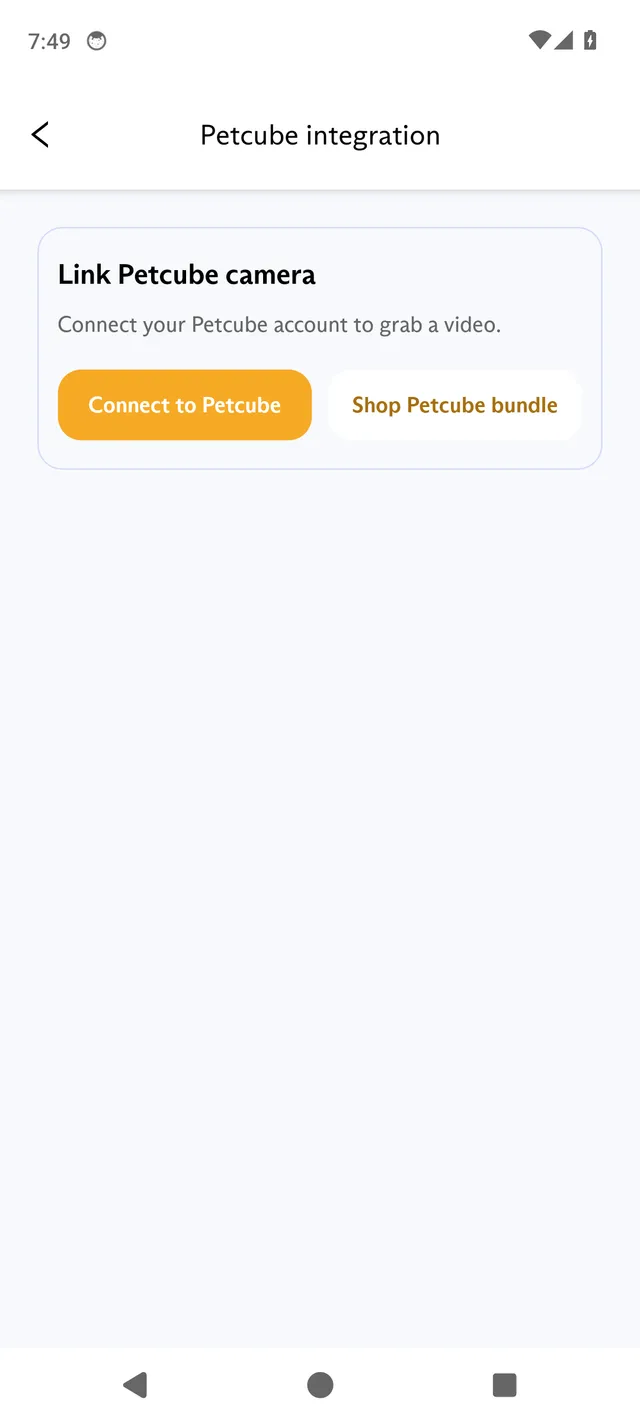
Section titled “Petcube integration”With a Petcube camera, you can see videos of your learner’s button presses in the FluentPet app. The Petcube integration row shows Connected or Not connected.
To link your Petcube account:
- Tap Petcube integration.
- Tap Connect to Petcube and sign in to your Petcube account.
- When you return to the FluentPet app, the screen shows Connected Petcube account. To unlink it later, tap Disconnect Petcube account.
To get a Petcube subscription, tap Shop Petcube bundle. The button appears while no Petcube account is connected. The shop screen says: “Petcube Camera included at no extra charge!”
Notifications & app icon
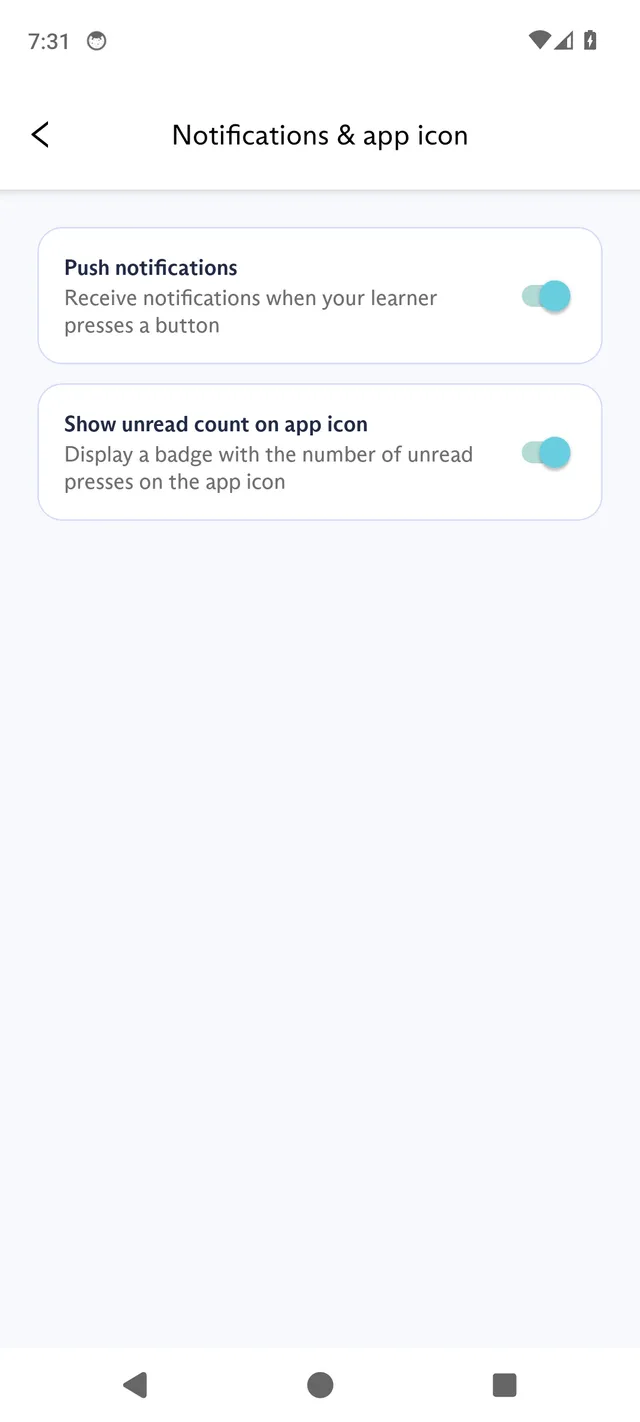
Section titled “Notifications & app icon”Tap Notifications & app icon to turn Push notifications on or off, and to choose whether the app icon shows the number of unread presses (Show unread count on app icon). If notifications do not arrive, see App: Fix missing press notifications.
Data export
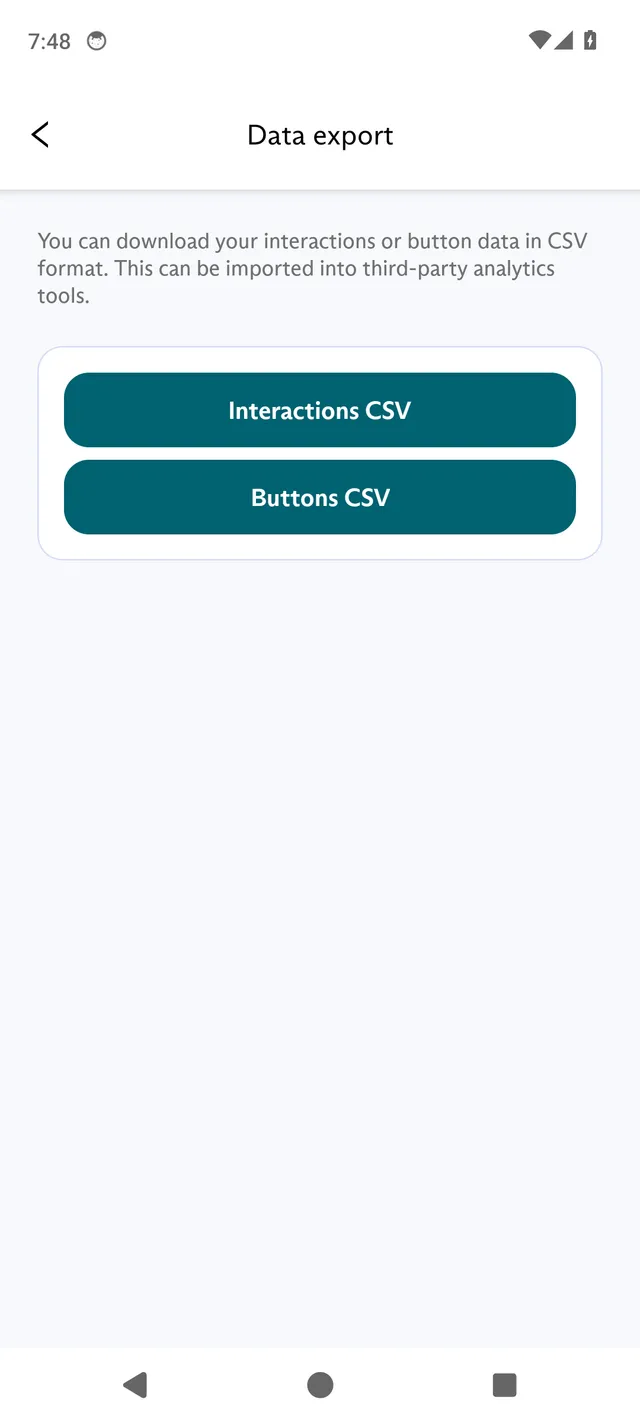
Section titled “Data export”Every household member can download the household’s data as CSV files. In the app’s words: “You can download your interactions or button data in CSV format. This can be imported into third-party analytics tools.”
- Tap Data export.
- Tap Interactions CSV or Buttons CSV.
- Choose where to save or send the file in your phone’s share sheet.
The files cover your household’s main board, for all time:
- Interactions CSV (fluentpet-interactions-timestamp.csv) lists each pressed or logged interaction, with its buttons, the teacher and learner, the time, its note and its contexts.
- Buttons CSV (fluentpet-buttons-timestamp.csv) lists each button, with its word and dates.
The Buttons CSV leaves out archived buttons; the Interactions CSV includes presses on every button, archived ones included. Presses by archived members are included. Journal entries and reactions are not part of the export.
The Google Sheets add-on and the Looker Studio dashboards are retired. The CSV export replaces them.
Language
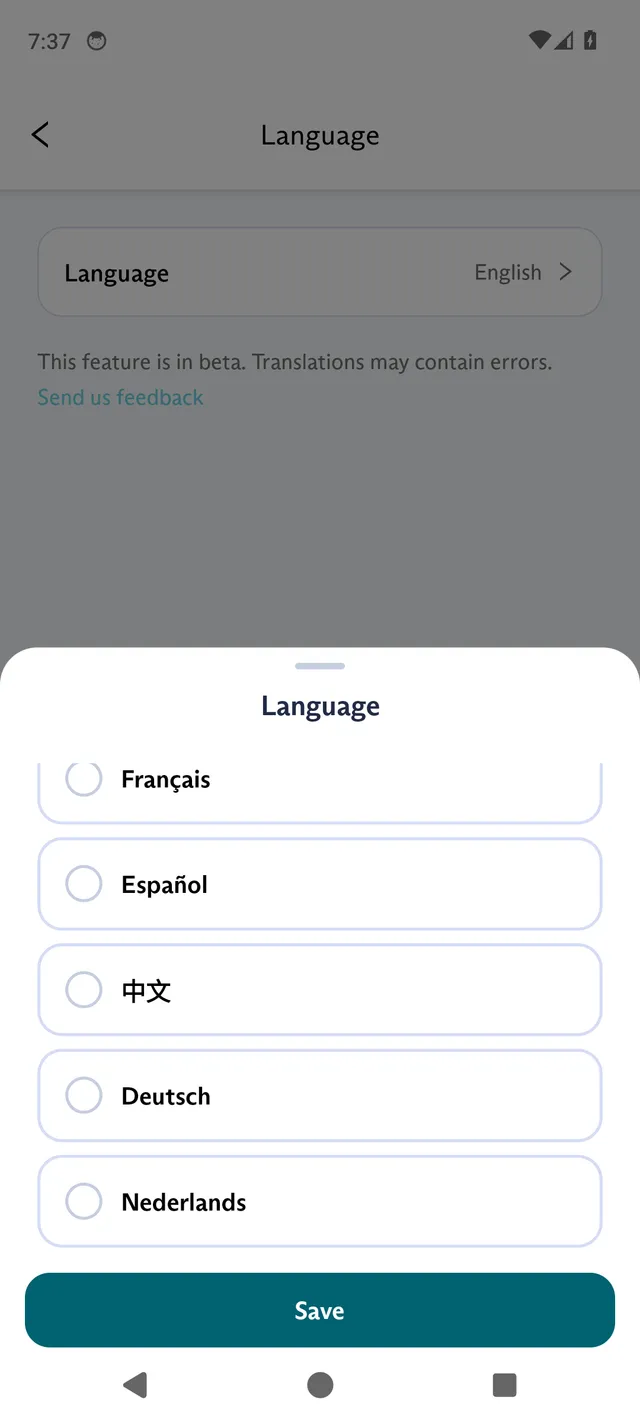
Section titled “Language”Tap Language, then tap Language again to choose the app’s language: Device language, English, Français, Español, 中文, Deutsch or Nederlands. Tap Save to apply it.
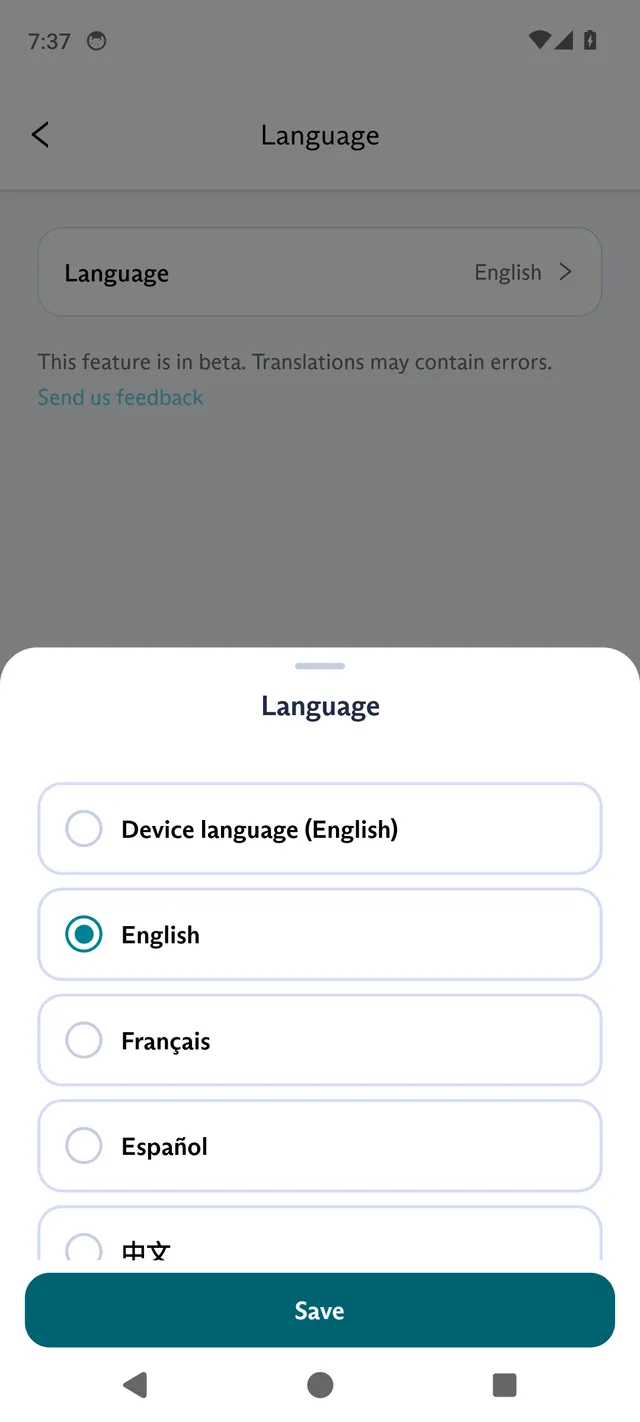
Scroll down the sheet to see the other languages.
App version, support and policies
Section titled “App version, support and policies”- App version shows the version of the app you use.
- Contact support opens a chat with the FluentPet support team. For other ways to reach us, see Support: Contact FluentPet.
- Terms of Service and Privacy Policy open the FluentPet terms and privacy policy.
Log out and delete your account
Section titled “Log out and delete your account”Tap Log out to sign out of the app. To delete your account, tap Delete account. See Account: Sign in, change your email or delete your account.