

Household: Invite another teacher
In a shared household, several teachers use the app with their own accounts and work with the same data. All members see all presses.
You manage a shared household in the app under Settings > Household. To open it, tap the menu icon at the top left, then tap SETTINGS and Household.
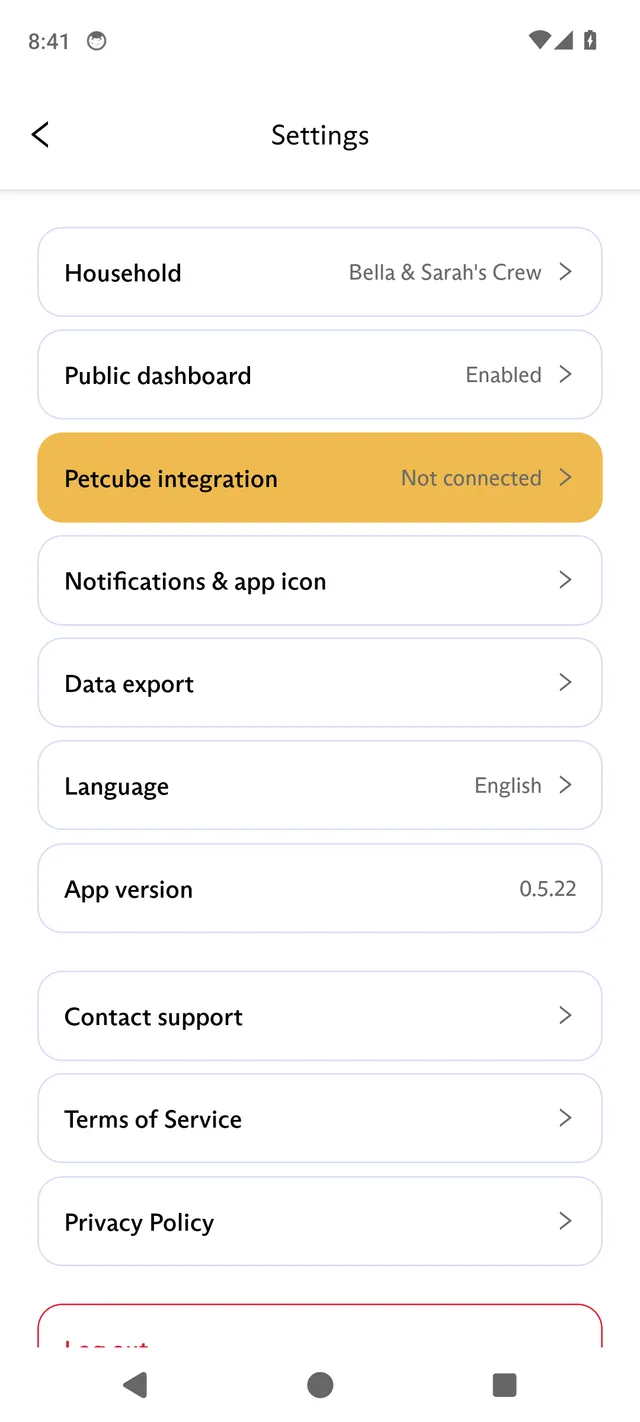
Invite a teacher
Section titled “Invite a teacher”The Owner of the household invites a teacher by email address. The teacher does not need a FluentPet account yet.
- Open Settings > Household.
- Tap + Invite Member by email and enter the teacher’s email address.
- Tap Invite.
Check an invitation
Section titled “Check an invitation”Open Settings > Household:
- A pending invitation is listed under Invitations sent: until it is accepted, declined or removed.
- Someone who has joined is listed under Household Members:.
- An invitation you received is listed under Invitations from other Members to join their Households:.
Accept an invitation
Section titled “Accept an invitation”The invited teacher gets an email with an accept link.
- If you do not have a FluentPet account yet, install the app and tap Create an account, using the email address the invitation was sent to. See Account: Sign in, change your email or delete your account.
- Then tap the accept link in the email, or accept in the app:
- Open Settings > Household.
- Under Invitations from other Members to join their Households:, tap Accept. To turn the invitation down, tap Decline.
The accept link only works once you have a FluentPet account with the same email address the invitation was sent to.
Invitations from several households can be pending at once. Accepting moves you into the new household, and its data appears in your app. An Owner whose own household still has other members cannot accept an invitation elsewhere.
Expired invitations
Section titled “Expired invitations”Invitations expire after 72 hours. There is no resend, and inviting the same email address again does nothing while a pending or expired invitation exists. To invite the teacher again, the Owner removes the old invitation first:
- Open Settings > Household.
- Under Invitations sent:, tap Remove next to the invitation and confirm.
- Send a new invitation.
Only the Owner can remove a pending invitation.
Leave a household or remove a member
Section titled “Leave a household or remove a member”A member can leave a household they joined:
- Open Settings > Household.
- Tap Leave Household and confirm.
The Owner can remove a member:
- Open Settings > Household.
- Under Household Members:, tap Remove next to the member and confirm.
Either way, the person returns to their own original household. Everything they logged stays in the household they left, including presses, events, notes and their teacher entry.
The Owner cannot leave their own household. A household is never deleted when people leave.
Owner and members
Section titled “Owner and members”Each household has one Owner: the person who created it. Ownership cannot be transferred.
Only the Owner can:
- Invite teachers and remove pending invitations.
- Remove members.
- Manage the public profile.
Every member can do everything else, for example rename the household, add, edit or archive learners and teachers, delete a Base, unlink or merge Buttons, delete events, and see all presses.
An account belongs to one household at a time. You move to another household only by accepting an invitation, or by leaving, which returns you to your own household. There is no household switcher.