

App: Manage Bases and Buttons in the Hardware tab
The Hardware tab at the bottom of the app shows your Bases and the buttons that belong to them.
See your Bases and Buttons
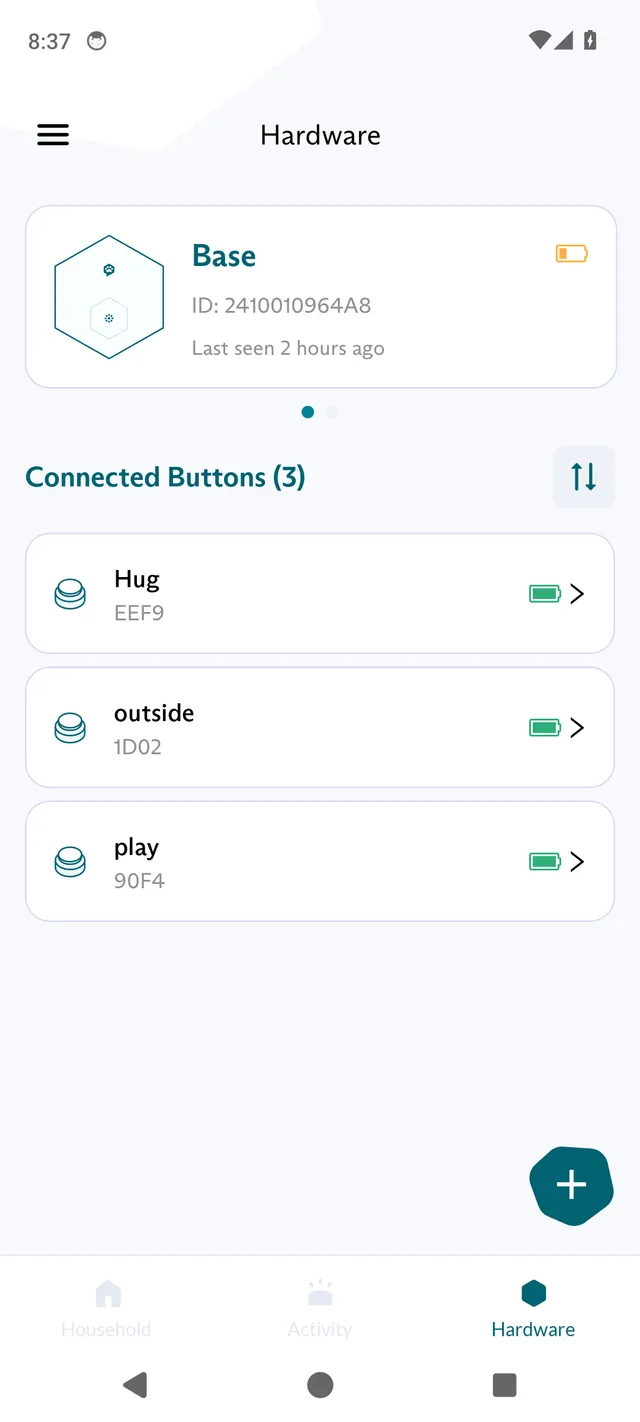
Section titled “See your Bases and Buttons”Each Base has a card with its name, its ID, when it was last seen and its battery level. Below the card, Connected Buttons lists the Connect Buttons linked to that Base, with the number of Buttons in parentheses.
-
If you have more than one Base, swipe the card or tap the arrows to move between your Bases.
-
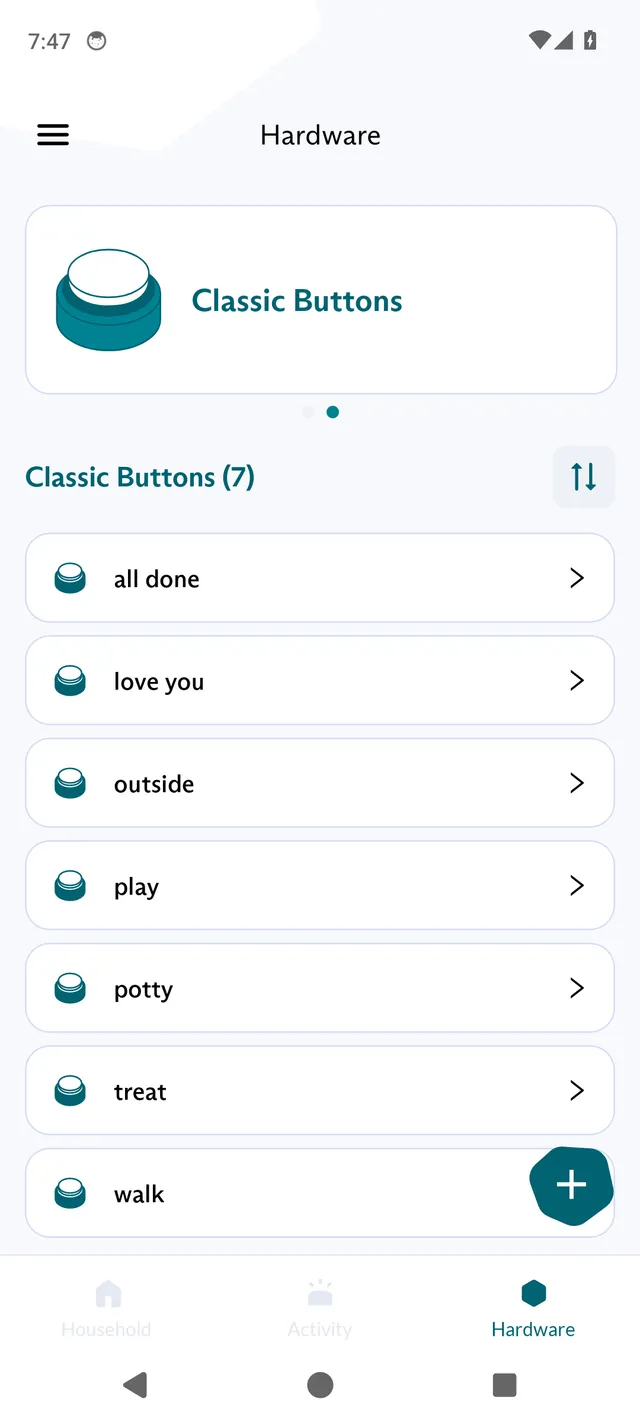
Swipe the cards to the left until you reach the last card, Classic Buttons. It lists the buttons you log by hand, such as Speak Up! Buttons, and Connect Buttons that are no longer linked to a Base.
-
To change the order of the list, tap the sort icon next to the list title, choose an option under Sort by (A-Z, Z-A, Popular, Recently added or Battery level), then tap Save. Battery level is only offered for Connect Buttons.
Change your Base details
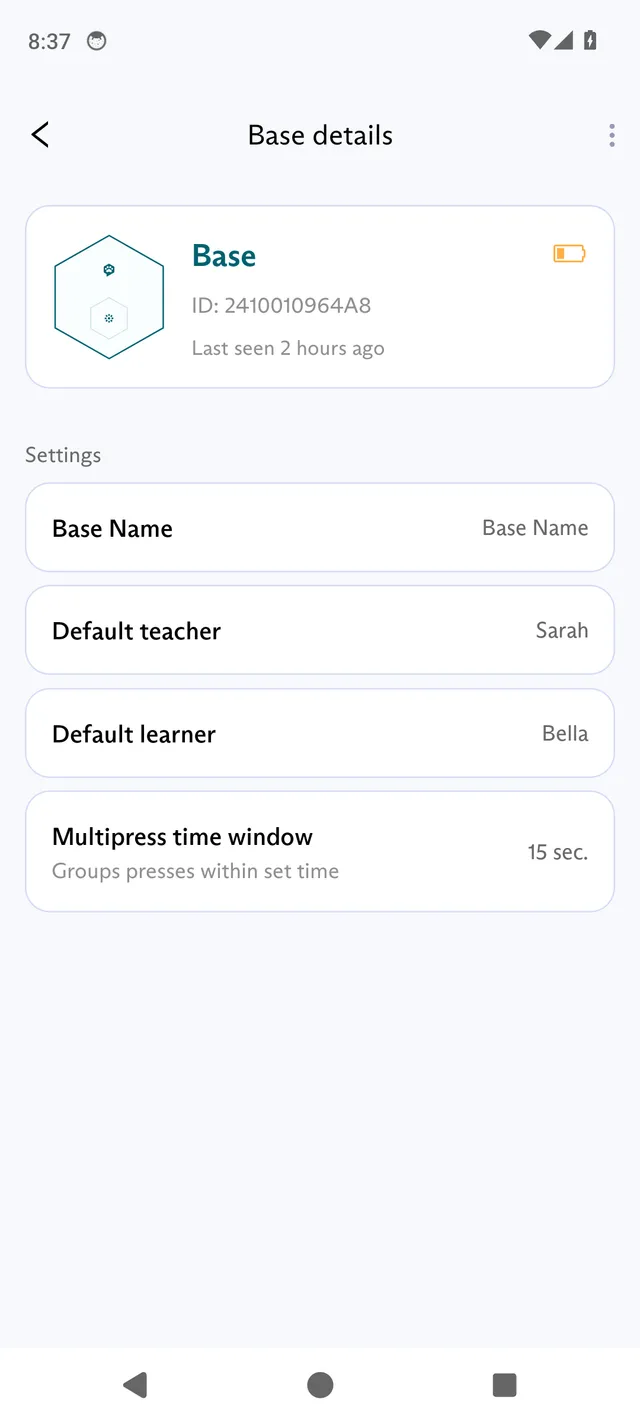
Section titled “Change your Base details”Tap the Base card to open Base details. Tap a setting to change it:
- Base Name: the name of the Base in the app.
- Default teacher and Default learner: who new presses from this Base are assigned to when you choose them with the Default presser switch in the Activity feed. See App: Use the Activity feed.
- Multipress time window: groups presses within the set time into one entry, so a phrase of several buttons shows as one event. Set it with the wheel, in seconds (0 to 60) or minutes (0 to 10). The row shows the current value in seconds.
Add a Base or a Connect Button
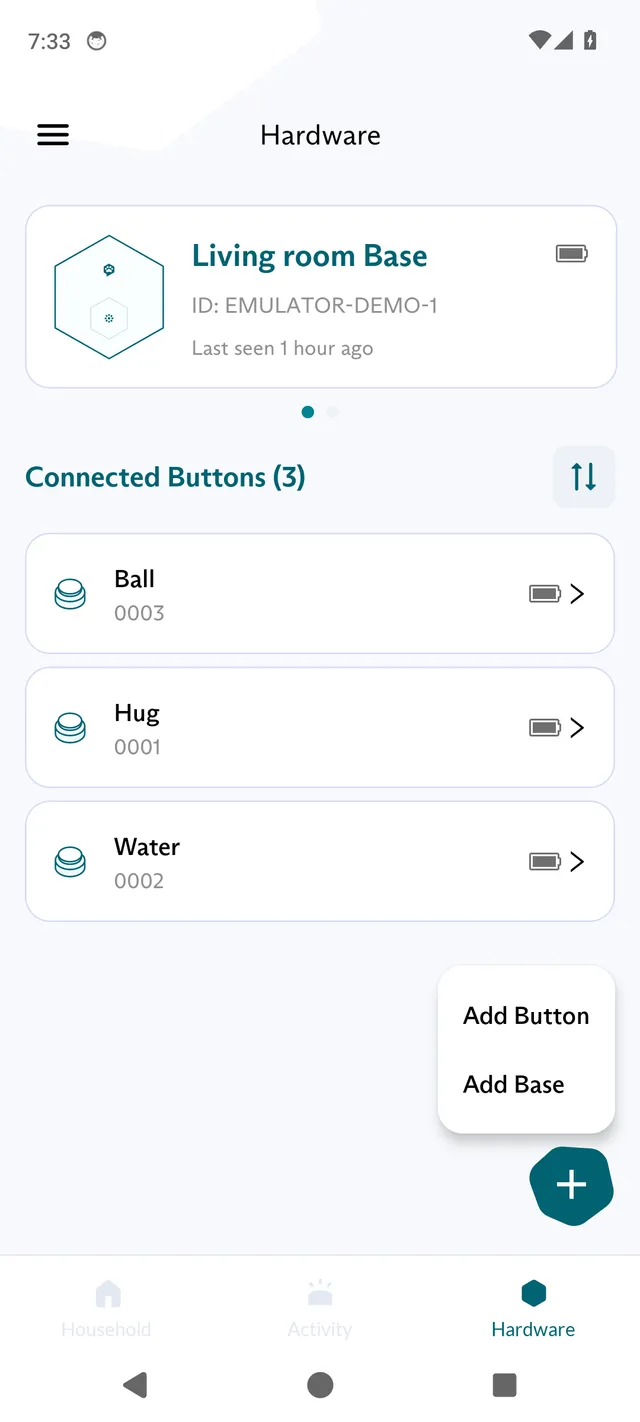
Section titled “Add a Base or a Connect Button”Tap + at the bottom right of the Hardware tab, then:
- Tap Add Base to set up a Base. See Connect Base: Set up your Base in the app.
- Tap Add Button to link a Connect Button. See Connect Buttons: Link a Button and record its word.
Add a button you log by hand
Section titled “Add a button you log by hand”The app calls the buttons you log by hand Classic Buttons, for example Speak Up! Buttons. To add one:
- Tap + at the bottom right of the Hardware tab, then tap Add Button.
- Tap the three-dot menu icon at the top right, then tap Add a Classic Button.
- On Add a Classic Button, enter the button’s Word, then tap Save.
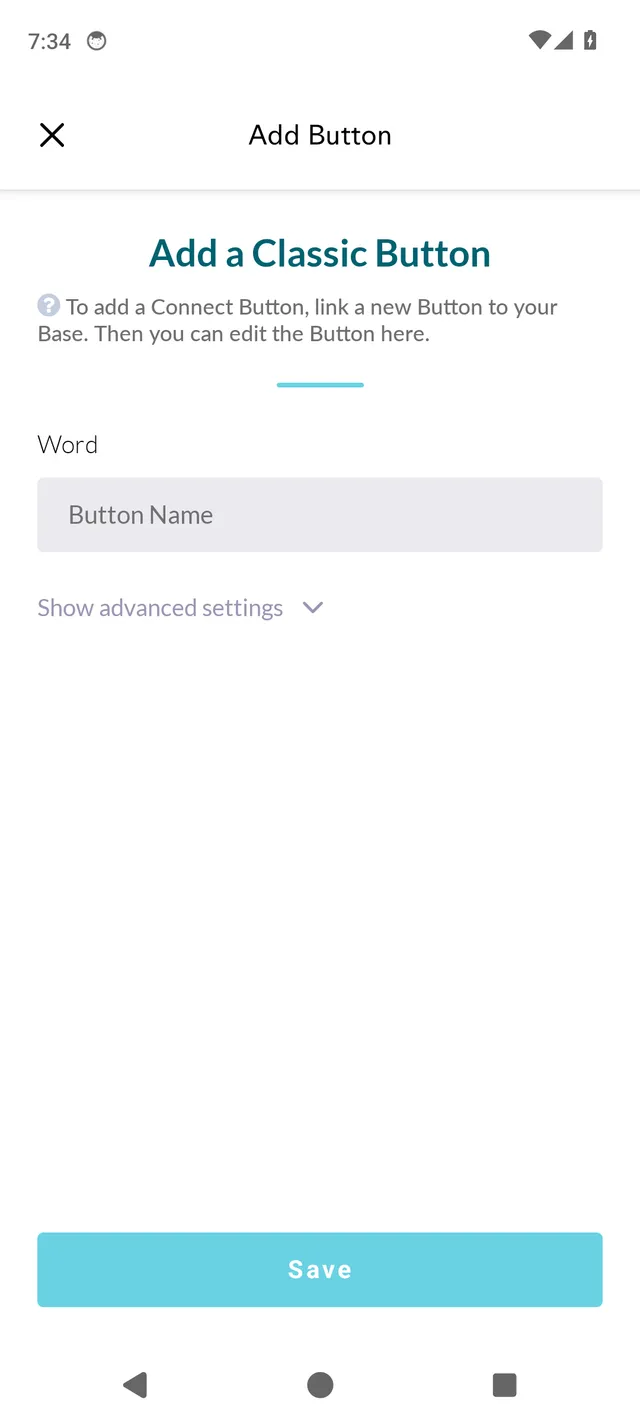
If you have no Base yet, the Hardware tab shows Add your first Base. Tap Add manually logged button to add a button you log by hand. A Classic Buttons row below lists the buttons you added.
To log a press on one of these buttons, see App: Use the Activity feed.
Change a button
Section titled “Change a button”Tap a button in a list to open Button details. For a Connect Button, the card shows the Button’s ID, when it was last seen and its battery level.
- Tap Word to change the button’s word.
- Tap Sound to change the sound a Connect Button plays.
- Under Meaning, describe the concept or context of the word, then tap Save.
- Tap the three-dot menu icon at the top right for more options:
- Merge (Connect Buttons only) moves the press history of a Classic Button to this Button. See Connect Buttons: Replace a Button and keep its history.
- Unlink Button unlinks a Connect Button from its Base. The Button keeps its name, word and press history. Tap Yes, unlink, then press the Base Button to finish. For the full steps, see Connect Buttons: Replace a Button and keep its history.
- Archive Button hides a Classic Button. Tap Yes, archive to confirm. Its word and press history are kept.
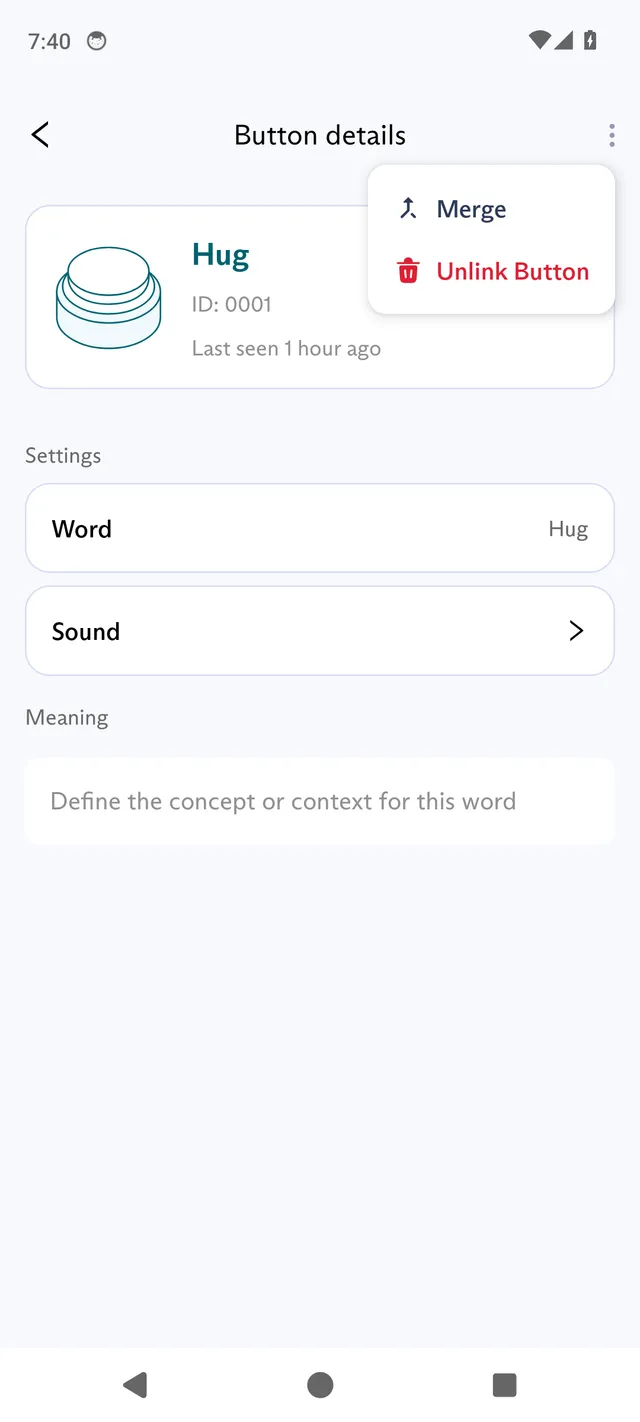
The app has no option to unarchive a button. To bring an archived button back with its press history, add a Classic Button with the same word (see Add a button you log by hand). Or open a Connect Button, tap Merge and choose the archived button: the Connect Button then takes the archived button’s name and press history.
Delete a Base
Section titled “Delete a Base”- Tap the Base card to open Base details.
- Tap the three-dot menu icon at the top right, then tap Delete Base.
- Tap Yes, delete to confirm.
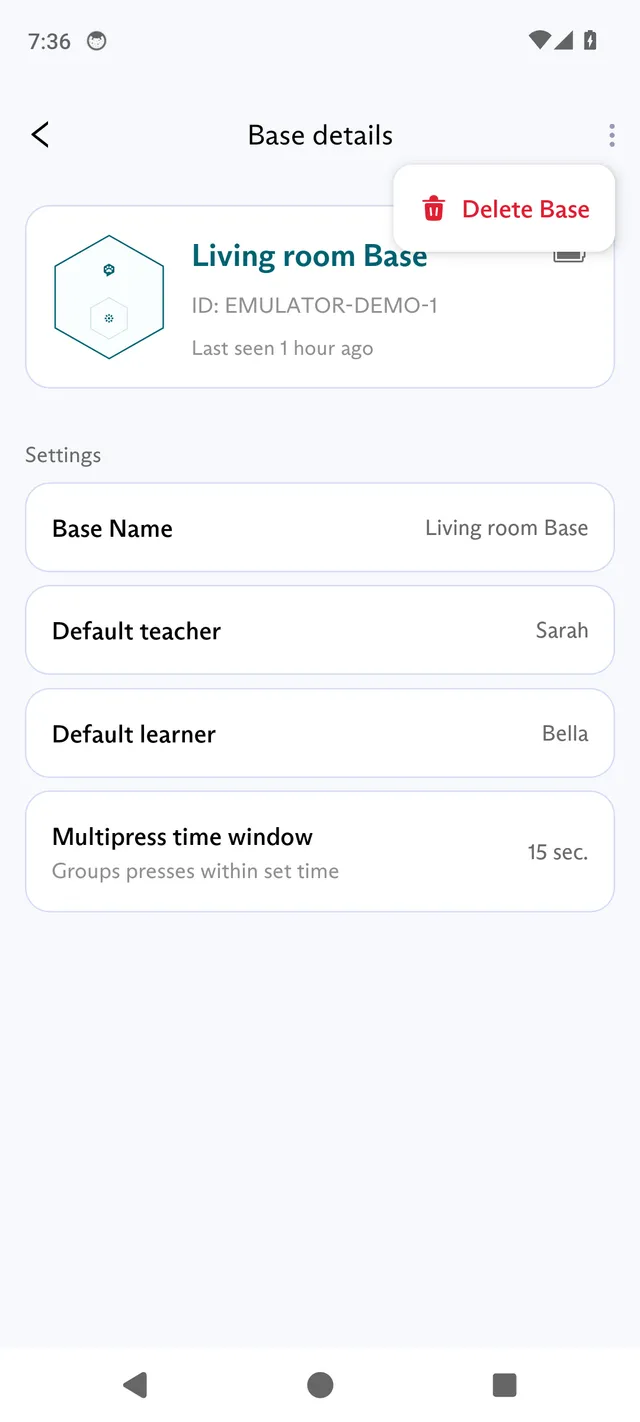
Deleting a Base removes it from your household. Your press data and buttons are kept, but presses stop logging until you add the Base again.